
作業計画書とメール作成自動(※現在検証中)化するツールのコードです。
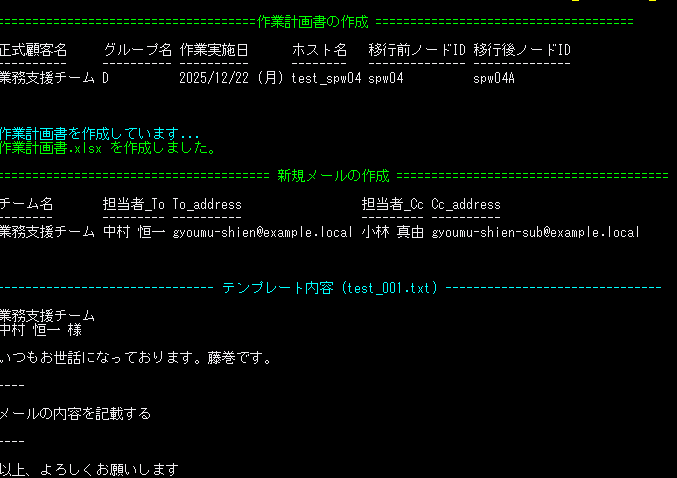
PowerShellの実行結果の画面は下記になります。
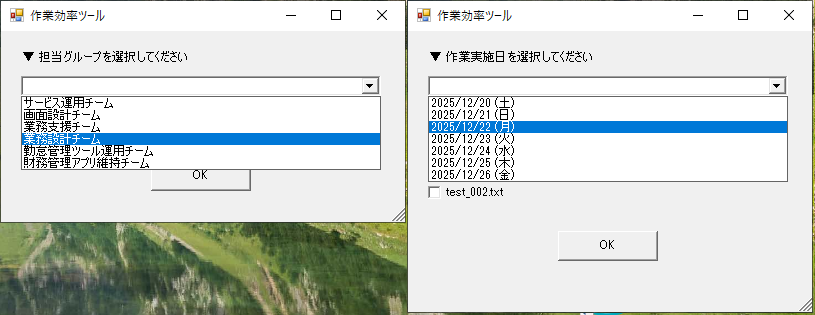
powershellの実行後の実際の操作画面は以下となります。
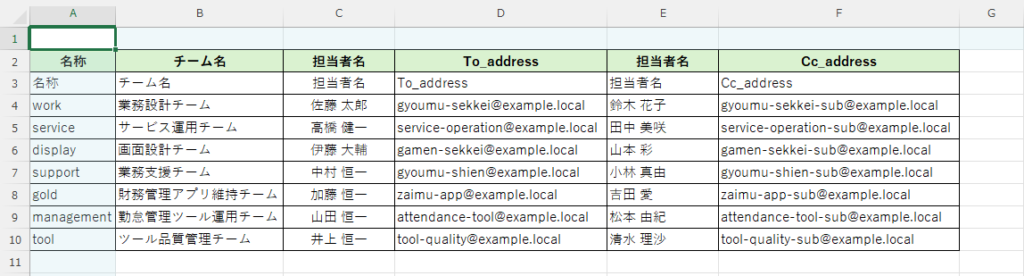
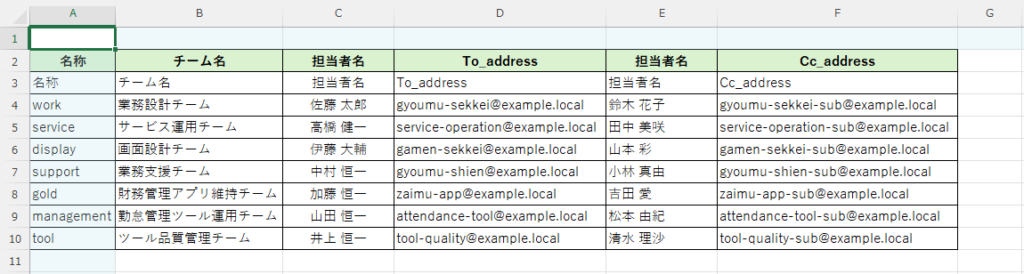
参考資料の構成はこちらになります。
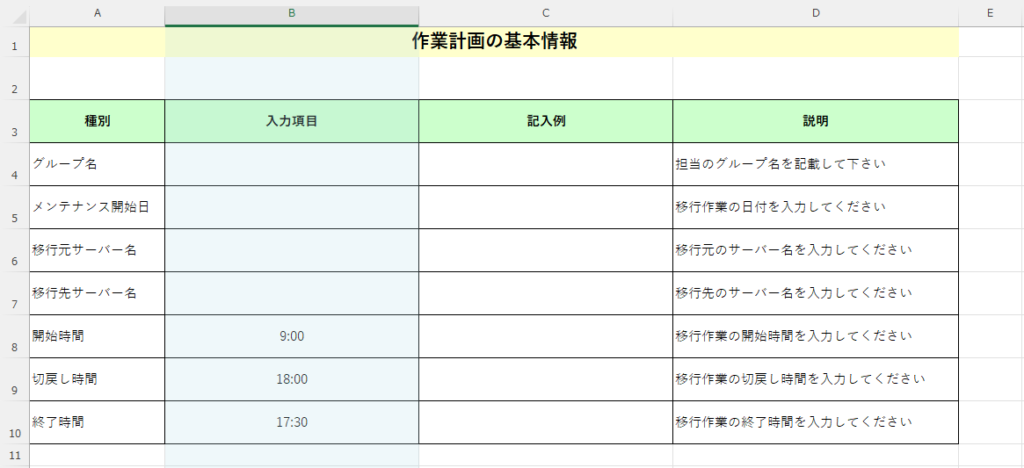
# ===========================================================================================================================
# 0. 共通関数
# ===========================================================================================================================

function New-ToolForm {
    param([int]$Width,[int]$Height)

    $form = New-Object System.Windows.Forms.Form
    $form.Text = "作業効率ツール"
    $form.Size = New-Object System.Drawing.Size($Width, $Height)
    $form.StartPosition = "CenterScreen"
    return $form
}

function Get-ColumnValueList {
    param($Sheet,[int]$ColumnNumber)

    $lastRow = $Sheet.UsedRange.Rows.Count
    $list = @()

    for ($i = 4; $i -le $lastRow; $i++) {
        $value = $Sheet.Cells.Item($i, $ColumnNumber).Text
        if ($value -ne "") { $list += $value }
    }

    return ($list | Sort-Object -Unique)
}

function Close-ExcelComObject {
    param($ComObject)
    if ($null -ne $ComObject) {
        [System.Runtime.InteropServices.Marshal]::ReleaseComObject($ComObject) | Out-Null
    }
}

# ===========================================================================================================================
# 1. パス定義
# ===========================================================================================================================
$serverLedgerPath   = "C:\Users\sasio-tech.SASIO.JP\Documents\作業申請ツール\sample_001.xlsx"
$serverSheetName    = "Sheet1"

$customerLedgerPath = "C:\Users\sasio-tech.SASIO.JP\Documents\作業申請ツール\sample_004.xlsx"
$customerSheetName  = "Sheet1"

Add-Type -AssemblyName System.Windows.Forms


# ===========================================================================================================================
# 2. Excel起動
# ===========================================================================================================================
$excel = New-Object -ComObject Excel.Application
$excel.Visible = $false
$excel.DisplayAlerts = $false

# ===========================================================================================================================
# 3-1.顧客台帳のExcelを開く
# ===========================================================================================================================
$customerWorkbook = $excel.Workbooks.Open($customerLedgerPath)
$customerSheet    = $customerWorkbook.Worksheets.Item($customerSheetName)

# ===========================================================================================================================
# 3-2.グループ一覧の取得 ⇒ ①初回のウィンドウ(グループ選択コンボボックス)で表示
# ===========================================================================================================================
$teamList = Get-ColumnValueList -Sheet $customerSheet -ColumnNumber 2

# ===========================================================================================================================
# 3-3.フォーム生成
# ===========================================================================================================================
# 共通関数 New-ToolForm を使用してフォームを生成(横幅420px / 高さ230px)
$form = New-ToolForm -Width 420 -Height 230

# ===========================================================================================================================
# 3-4.初回のウィンドウ(グループ選択ラベル:説明文ラベルを作成)
# ===========================================================================================================================
$labelGroup = New-Object System.Windows.Forms.Label
$labelGroup.Text = "▼ 担当グループを選択してください"
$labelGroup.Location = New-Object System.Drawing.Point(20,20)
$labelGroup.Size = New-Object System.Drawing.Size(360,20)
$form.Controls.Add($labelGroup)

# ===========================================================================================================================
# 3-5.初回のウィンドウ(グループ選択コンボボックス)
# ===========================================================================================================================
$comboTeam = New-Object System.Windows.Forms.ComboBox
$comboTeam.Location = New-Object System.Drawing.Point(20,45)
$comboTeam.Size = New-Object System.Drawing.Size(360,30)
$comboTeam.DropDownStyle = "DropDownList"
$comboTeam.Items.AddRange($teamList)
$form.Controls.Add($comboTeam)

# ===========================================================================================================================
# 3-6.初回のウィンドウ(横並び:作業計画+メール作成のラジオボタン)
# ===========================================================================================================================
$radioPlan = New-Object System.Windows.Forms.RadioButton
$radioPlan.Text = "作業計画・メール"
$radioPlan.Location = New-Object System.Drawing.Point(25,80)
$radioPlan.AutoSize = $true
$radioPlan.Checked = $true
$form.Controls.Add($radioPlan)

$radioMail = New-Object System.Windows.Forms.RadioButton
$radioMail.Text = "メール作成のみ"
$radioMail.Location = New-Object System.Drawing.Point(160,80)
$radioMail.AutoSize = $true
$form.Controls.Add($radioMail)

$btn1 = New-Object System.Windows.Forms.Button
$btn1.Text = "OK"
$btn1.Size = New-Object System.Drawing.Size(100,30)
$btn1.Location = New-Object System.Drawing.Point(150,130)
$btn1.Add_Click({
    $form.Tag = @{
        Group = $comboTeam.SelectedItem
        Mode  = if ($radioPlan.Checked) { "Plan" } else { "MailOnly" }
    }
    $form.Close()
})
$form.Controls.Add($btn1)

$form.ShowDialog() | Out-Null

$targetGroupName = $form.Tag.Group
$selectedMode    = $form.Tag.Mode

# ===========================================================================================================================
# 3-7.顧客台帳を閉じる(読み取りのみのため保存なし)
# ===========================================================================================================================
$customerWorkbook.Close($false)

# ===========================================================================================================================
# 3-8.未選択チェック
# ===========================================================================================================================
if (-not $targetGroupName) {
    Write-Host "チーム未選択。終了します。" -ForegroundColor Yellow
    $excel.Quit()
    return
}

# ===========================================================================================================================
# 4-1. サーバー台帳を開く
# ===========================================================================================================================
$serverWorkbook = $excel.Workbooks.Open($serverLedgerPath)
$serverSheet    = $serverWorkbook.Worksheets.Item($serverSheetName)

$usedRange = $serverSheet.UsedRange
$lastRow   = $usedRange.Rows.Count

$dateList = Get-ColumnValueList -Sheet $serverSheet -ColumnNumber 7

# ===========================================================================================================================
# 4-2.日付+テンプレート選択
# ===========================================================================================================================

$form2Height = if ($selectedMode -eq "Plan") { 320 } else { 240 }
$form2 = New-ToolForm -Width 420 -Height $form2Height

$yPos = 20

# ===========================================================================================================================
# 4-3.日付(作業計画のみ表示)
# ===========================================================================================================================
if ($selectedMode -eq "Plan") {

    $labelDate = New-Object System.Windows.Forms.Label
    $labelDate.Text = "▼ 作業実施日を選択してください"
    $labelDate.Location = New-Object System.Drawing.Point(20,$yPos)
    $labelDate.Size = New-Object System.Drawing.Size(360,20)
    $form2.Controls.Add($labelDate)

    $comboDate = New-Object System.Windows.Forms.ComboBox
    $comboDate.Location = New-Object System.Drawing.Point(20,$($yPos+25))
    $comboDate.Size = New-Object System.Drawing.Size(360,30)
    $comboDate.DropDownStyle = "DropDownList"
    $comboDate.Items.AddRange($dateList)
    $form2.Controls.Add($comboDate)

    $yPos += 80
}

# ===========================================================================================================================
# 4-4.テンプレート選択(常に表示)
# ===========================================================================================================================
$labelTemplate = New-Object System.Windows.Forms.Label
$labelTemplate.Text = "▼ 使用するテンプレートを選択してください(複数選択可)"
$labelTemplate.Location = New-Object System.Drawing.Point(20,$yPos)
$labelTemplate.Size = New-Object System.Drawing.Size(380,20)
$form2.Controls.Add($labelTemplate)

$checkTemplate1 = New-Object System.Windows.Forms.CheckBox
$checkTemplate1.Text = "test_001.txt"
$checkTemplate1.Location = New-Object System.Drawing.Point(20,$($yPos+25))
$form2.Controls.Add($checkTemplate1)

$checkTemplate2 = New-Object System.Windows.Forms.CheckBox
$checkTemplate2.Text = "test_002.txt"
$checkTemplate2.Location = New-Object System.Drawing.Point(20,$($yPos+50))
$form2.Controls.Add($checkTemplate2)

# OKボタン
$btn2 = New-Object System.Windows.Forms.Button
$btn2.Text = "OK"
$btn2.Size = New-Object System.Drawing.Size(100,30)
$btn2.Location = New-Object System.Drawing.Point(150,$($yPos+100))

$btn2.Add_Click({

    $templates = @()
    if ($checkTemplate1.Checked) { $templates += "test_001.txt" }
    if ($checkTemplate2.Checked) { $templates += "test_002.txt" }

    $form2.Tag = @{
        Date     = if ($selectedMode -eq "Plan") { $comboDate.SelectedItem } else { $null }
        Template = $templates
    }

    $form2.Close()
})

$form2.Controls.Add($btn2)
$form2.ShowDialog() | Out-Null

$selectedDate     = $form2.Tag.Date
$selectedTemplate = $form2.Tag.Template

# バリデーション
if ($selectedTemplate.Count -eq 0) {
    Write-Host "テンプレート未選択。終了します。" -ForegroundColor Yellow
    $serverWorkbook.Close($false)
    $excel.Quit()
    return
}

if ($selectedMode -eq "Plan" -and -not $selectedDate) {
    Write-Host "日付未選択。終了します。" -ForegroundColor Yellow
    $serverWorkbook.Close($false)
    $excel.Quit()
    return
}

# ===========================================================================================================================
# 5. フィルタ
# ===========================================================================================================================
$usedRange.AutoFilter(5, $targetGroupName) | Out-Null

if ($selectedMode -eq "Plan") {
    $usedRange.AutoFilter(7, $selectedDate) | Out-Null
}

# ===========================================================================================================================
# 6. 抽出 ⇒ 8. 作業計画書の結果表示で出力
# ===========================================================================================================================
$resultArray = @()

for ($row = 4; $row -le $lastRow; $row++) {

    if (-not $serverSheet.Rows.Item($row).Hidden) {

        $customerName = $serverSheet.Cells.Item($row, 5).Text
        if ($customerName -ne "") {

            $resultArray += [PSCustomObject]@{
                正式顧客名     = $customerName
                グループ名     = $serverSheet.Cells.Item($row, 6).Text
                作業実施日     = $serverSheet.Cells.Item($row, 7).Text
                ホスト名       = $serverSheet.Cells.Item($row, 2).Text
                移行前ノードID = $serverSheet.Cells.Item($row, 3).Text
                移行後ノードID = $serverSheet.Cells.Item($row, 4).Text
            }
        }
    }
}

# ===========================================================================================================================
# 7.メールの送信先情報を配列に格納 ⇒ 9.メール作成内容のプレビューで出力
# ===========================================================================================================================

$customerWorkbook = $excel.Workbooks.Open($customerLedgerPath)
$customerSheet    = $customerWorkbook.Worksheets.Item($customerSheetName)

$teamInfoArray = @()
$lastRowCustomer = $customerSheet.UsedRange.Rows.Count

for ($row = 4; $row -le $lastRowCustomer; $row++) {

    $teamName = $customerSheet.Cells.Item($row, 2).Text

    if ($teamName -eq $targetGroupName) {

        $teamInfoArray += [PSCustomObject]@{
            チーム名       = $teamName
            担当者_To      = $customerSheet.Cells.Item($row, 3).Text
            To_address     = $customerSheet.Cells.Item($row, 4).Text
            担当者_Cc      = $customerSheet.Cells.Item($row, 5).Text
            Cc_address     = $customerSheet.Cells.Item($row, 6).Text
        }
    }
}

# ===========================================================================================================================
# 8. 作業計画書の結果表示
# ===========================================================================================================================
if ($selectedMode -eq "Plan") {

    Write-Host ""
    Write-Host "=====================================作業計画書の作成 =====================================" -ForegroundColor Green

    if ($resultArray.Count -eq 0) {
        Write-Host "該当データはありません。" -ForegroundColor Yellow
    }
    else {

	# ===========================================================================================================================
	# 6-1. 対象顧客の実行結果の出力(Planモードのみ)
	# ===========================================================================================================================
        $resultArray | Format-Table -AutoSize

	# ===========================================================================================================================
	# 6-2. 作業計画書作成(Planモードのみ)
	# ===========================================================================================================================
	if ($selectedMode -eq "Plan" -and $resultArray.Count -gt 0) {

	    Write-Host ""
	    Write-Host "作業計画書を作成しています..." -ForegroundColor Cyan

	    # テンプレート(sample_005.xlsx)
	    $planTemplatePath = "C:\Users\sasio-tech.SASIO.JP\Documents\作業申請ツール\sample_005.xlsx"

	    # 保存先
	    $newFilePath = Join-Path (Split-Path $planTemplatePath) "作業計画書.xlsx"

	    # 既存削除
	    if (Test-Path $newFilePath) {
	        Remove-Item $newFilePath -Force
	    }

	    # 複製
	    Copy-Item $planTemplatePath $newFilePath

	    # 開く
	    $planWorkbook = $excel.Workbooks.Open($newFilePath)
	    $planSheet    = $planWorkbook.Worksheets.Item(2)

	    # ------------------------------
	    # 固定セルへ書き込み
	    # ------------------------------

	    # グループ名 → B4
	    $planSheet.Range("B4").Value2 = $targetGroupName

	    # メンテナンス開始日 → B5
	    $planSheet.Range("B5").Value2 = $selectedDate

	    # 移行元サーバー(複数あれば改行区切り)→ B6
	    $beforeServers = ($resultArray | Select-Object -ExpandProperty 移行前ノードID) -join "`r`n"
	    $planSheet.Range("B6").Value2 = $beforeServers

	    # 移行先サーバー(複数あれば改行区切り)→ B47
	    $afterServers = ($resultArray | Select-Object -ExpandProperty 移行後ノードID) -join "`r`n"
	    $planSheet.Range("B7").Value2 = $afterServers

	    # 保存
	    $planWorkbook.Save()
	    $planWorkbook.Close($false)

	    Close-ExcelComObject $planSheet
	    Close-ExcelComObject $planWorkbook

	    Write-Host "作業計画書.xlsx を作成しました。" -ForegroundColor Green
	}
    }
}

# ===========================================================================================================================
# 9.メール作成内容のプレビュー
# ===========================================================================================================================
Write-Host ""
Write-Host "======================================= 新規メールの作成 =======================================" -ForegroundColor Green

if ($teamInfoArray.Count -eq 0) {
    Write-Host "該当チーム情報はありません。" -ForegroundColor Yellow
}
else {
    $teamInfoArray | Format-Table -AutoSize

    # -------------------------------------------------------
    # 選択されたテンプレート(どちらか1つ)の内容を表示
    # -------------------------------------------------------
    Write-Host ""

    $selectedFile = $selectedTemplate[0]

    $templateBasePath = "C:\Users\sasio-tech.SASIO.JP\Downloads\2026年前半_24期下半期_提出資料\メール文自動作成"
    $templatePath     = Join-Path $templateBasePath $selectedFile

    if (Test-Path $templatePath) {

        Write-Host "------------------------------- テンプレート内容 ($selectedFile) -------------------------------" -ForegroundColor Cyan
        Write-Host ""

        # ★ 置換用データ取得
        $companyName = $targetGroupName
        $personName  = $teamInfoArray[0].担当者_To + " 様"

        # ファイル読み込み+置換
        $content = Get-Content $templatePath -Encoding UTF8 -Raw

        $content = $content.Replace("(会社名)", $companyName)
        $content = $content.Replace("(担当者名)", $personName)

        # 出力
        Write-Host $content
    }
    else {
        Write-Host "テンプレートファイルが見つかりません:" -ForegroundColor Yellow
        Write-Host $templatePath -ForegroundColor DarkYellow
    }
}
$customerWorkbook.Close($false)


# ===========================================================================================================================
# 10. 終了処理
# ===========================================================================================================================
$serverWorkbook.Close($false)
$excel.Quit()

Close-ExcelComObject $serverSheet
Close-ExcelComObject $serverWorkbook
Close-ExcelComObject $customerSheet
Close-ExcelComObject $customerWorkbook
Close-ExcelComObject $excel

[GC]::Collect()
[GC]::WaitForPendingFinalizers()