本記事では、Windows 専用の業務効率化ツールである本ツールの仕様と操作方法について紹介します。
ツールの種別は以下となります。
HTA の特性により、HTML で画面を構築しつつ、VBScriptを用いた操作制御が可能になっています。動作環境は以下となります。
ツールは Windows 10 および Windows 11 を前提に作られおり動作検証済みです。画面仕様は以下となります。(※一部割愛させて頂きます。前回の内容をご確認ください)
申請書の入力項目のみを追加いたしました。
具体的な処理については後編でコードを紹介致します。
操作方法は以下となります。
各タブ内には「実行」ボタンが配置されており、HTA 起動時に VBScript の初期化処理が実行され、そこで各ボタンの
onclick イベントが紐づけられる仕組みになっています。これにより、画面構造と処理ロジックは分離されています。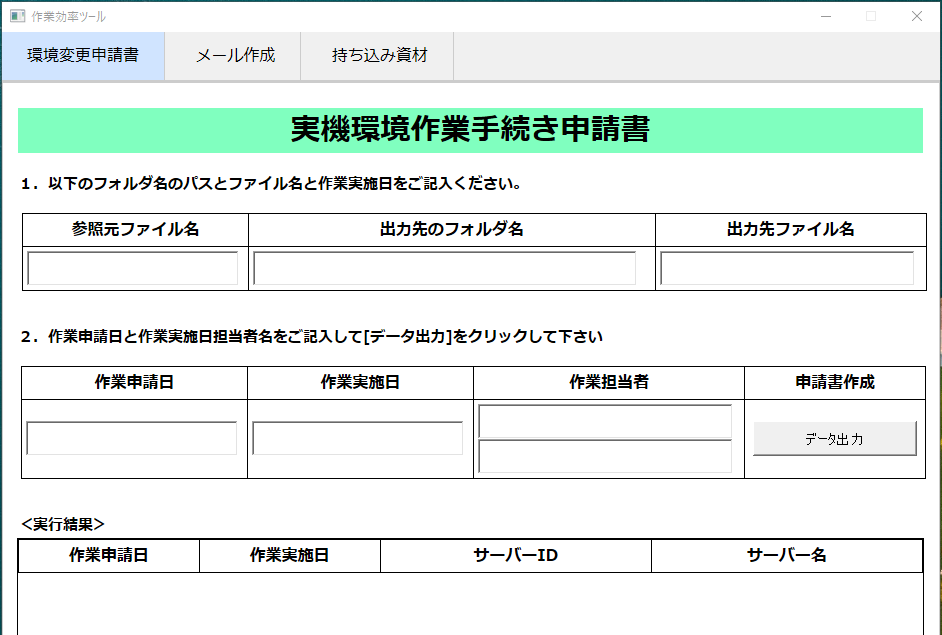
【tool.hta】
<!DOCTYPE html>
<html>
	<head>
		<meta http-equiv="X-UA-Compatible" content="IE=9" />
		<title>作業効率ツール</title>

		<HTA:APPLICATION
		  APPLICATIONNAME="作業効率ツール"
		  BORDER="thin"
		  BORDERSTYLE="normal"
		  CAPTION="yes"
		  SHOWINTASKBAR="yes"
		  SINGLEINSTANCE="yes"
		  SYSMENU="yes"
		  WINDOWSTATE="normal"
		  SCROLL="no"
		  MAXIMIZEBUTTON="no"
		  MINIMIZEBUTTON="yes"
		  RESIZE="no"
		  WIDTH="954"
		  HEIGHT="1000"
		/>

                <link rel="stylesheet" type="text/css" href="./tool_design.css">

		<script language="VBScript">

			'========================================================
			' ウィンドウそのもののサイズを固定化
			'========================================================
			Sub window_onload
				' ウインドウ外形を強制固定
				window.resizeTo 954, 986

				Dim w, h
				w = document.body.clientWidth
				h = document.body.clientHeight

			    	' オプション:画面中央に配置(HTA対応)
			    	Dim screenX, screenY
			    	screenX = (window.screen.Width - 954) / 2
			    	screenY = (window.screen.Height - 1050) / 2
			    	window.moveTo screenX, screenY


			    	' ボタン初期化(GetRef用)
			    	InitTabButtons
			End Sub

			'=================================================================================================================================
			' タブボタン初期化
			'=================================================================================================================================
			Sub InitTabButtons
			    Set document.getElementById("btnTab1").onclick = GetRef("RunTab1")
			    Set document.getElementById("btnTab2").onclick = GetRef("RunTab2")
			    Set document.getElementById("btnTab3").onclick = GetRef("RunTab3")
			End Sub

			'=================================================================================================================================
			' 入力情報を格納する変数の準備
			'=================================================================================================================================

			Dim basePath, srcPath, outPath, setDateStr, shinseiUser_furigana, shinseiUser, shinseiName2, workStartDate, workEndDate


			'=================================================================================================================================
			' タブごとの処理
			'=================================================================================================================================
			Sub RunTab1

				'=========================================================================================================================
				' 入力した情報の変数を格納かつ未入力の確認
				'=========================================================================================================================
				setDateStr = Document.getElementById("setDateStr").Value
				workStartDate  = Document.getElementById("workStartDate").Value
				shinseiUser_furigana  = Document.getElementById("shinseiUser_furigana").Value
				shinseiUser  = Document.getElementById("shinseiUser").Value
				shinseiName2 = Mid(shinseiUser, 1, 2)


				workEndDate = workStartDate

			    	srcPath  = Document.getElementById("srcPath").Value
			    	basePath = Document.getElementById("basePath").Value
			    	outPath  = Document.getElementById("outPath").Value

				'入力項目の状態を確認
				If basePath = "" Or srcPath = "" Or outPath = "" Or setDateStr = "" Or shinseiUser_furigana = "" Or shinseiUser = "" Or workStartDate = "" Then
					MsgBox "未入力の項目があります。すべて入力してください。"
					window.close
				else

					' 実機環境作業手続き申請書の作成の開始

					MsgBox "実機環境作業手続き申請書の作成を開始します"
					srcPath = "C:\Users\sasio-tech.SASIO.JP\Documents\作業申請ツール\" & srcPath
					outPath = basePath & "\" & outPath

				End If


				'RunExternalVBSに引き渡すための変数を指定
				RunExternalVBS "tab1", setDateStr, shinseiUser_furigana, shinseiUser, shinseiName2, workStartDate, workEndDate, basePath, srcPath, outPath

			End Sub

			Sub RunTab2
			    RunExternalVBS "tab2"
			End Sub

			Sub RunTab3
			    RunExternalVBS "tab3"
			End Sub

			'=========================================================================================================================
			' 外部 VBS を呼び出して申請書のセルに情報を追記していく
			'=========================================================================================================================
			Sub RunExternalVBS(vbs_tabName, vbs_setDateStr, vbs_shinseiUser_furigana, vbs_ShinseiUser, vbs_ShinseiName2, vbs_WorkStartDate, vbs_workEndDate, vbs_BasePath, vbs_SrcPath, vbs_OutPath)

				Dim shell, vbsPath, cmd, exec, line, arr

				Set shell = CreateObject("WScript.Shell")

				' 外部VBSファイルのパス
				vbsPath = CreateObject("Scripting.FileSystemObject").GetAbsolutePathName(".") & "\tool_script.vbs"

				cmd = "powershell -WindowStyle Hidden -Command " & _
				      """& { " & _
				      "$out = & cscript //nologo '" & vbsPath & "' " & _
				      "'" & vbs_tabName & "' " & _
				      "'" & vbs_setDateStr & "' " & _
				      "'" & vbs_shinseiUser_furigana & "' " & _
				      "'" & vbs_ShinseiUser & "' " & _
				      "'" & vbs_ShinseiName2 & "' " & _
				      "'" & vbs_WorkStartDate & "' " & _
				      "'" & vbs_workEndDate & "' " & _
				      "'" & vbs_BasePath & "' " & _
				      "'" & vbs_SrcPath & "' " & _
				      "'" & vbs_OutPath & "'; " & _
				      "$out }"""

                                MsgBox "実機環境作業申請書を作成中のため30~50秒ほどお待ちください。"
				'========================================
				' 外部VBS 実行
				'========================================
				Set exec = shell.Exec(cmd)

				' ★ 必須:終了待ち
				Do While exec.Status = 0

				    shell.Run "powershell -WindowStyle Hidden -Command Start-Sleep -Seconds 3", 0, True
				Loop

				Do Until exec.StdOut.AtEndOfStream
				    line = exec.StdOut.ReadLine

				    arr = Split(line, "|")
				    If UBound(arr) = 3 Then
				        Call AddResultRow(arr(0), arr(1), arr(2), arr(3))
				    End If
				Loop

				Set shell = Nothing

                                MsgBox "実機環境作業申請書の作成完了いたしました。"
			End Sub

			Sub AddResultRow(appDate, workDate, serverID, serverName)
				Dim tbl, newRow
				Set tbl = Document.getElementById("resultTable")
				Set newRow = tbl.insertRow(tbl.rows.length)

		  		newRow.insertCell(0).innerText = appDate
				newRow.insertCell(1).innerText = workDate
		 		newRow.insertCell(2).innerText = serverID
		 		newRow.insertCell(3).innerText = serverName
			End Sub

		</script>


	</head>

	<body>
		<!-- タブ制御用(追加) -->
		<input type="radio" name="tabsel" id="tab1" checked hidden>
		<input type="radio" name="tabsel" id="tab2" hidden>
		<input type="radio" name="tabsel" id="tab3" hidden>


		<div class="tab-menu">
		    <label class="tab" for="tab1">環境変更申請書</label>
		    <label class="tab" for="tab2">メール作成</label>
		    <label class="tab" for="tab3">持ち込み資材</label>
		</div>

		<div class="content-area">
			<div class="tab-content tab1">
				<div style="width:924px; height:943px; solid #000; overflow-x:hidden; overflow-y:auto; padding-left: 15px;">

					<h2 style="width:905px; background: #80ffbf; ">
						実機環境作業手続き申請書
					</h2>

					<!-- ===== 説明1 ===== -->
					<b style="font-size:15px;">1.以下のフォルダ名のパスとファイル名と作業実施日をご記入ください。</b>
					<br><br>

					<table style="font-size:13px; margin-top:-15px; margin-left:4px;">
						<tr>
							<th width="25%">参照元ファイル名</th>
							<th width="45%">出力先のフォルダ名</th>
							<th width="30%">出力先ファイル名</th>
						</tr>
						<tr>
							<td>
								<input type="text" id="srcPath">
							</td>
							<td>
								<input type="text" id="basePath">
							</td>
							<td>
								<input type="text" id="outPath">
							</td>
						</tr>
					</table>

					<br>

					<!-- ===== 説明2 ===== -->
					<b style="font-size: 15px;">2.作業申請日と作業実施日担当者名をご記入して[データ出力]をクリックして下さい</b>
					<br><br>

					<table style="font-size:13px; margin-top:-15px; margin-left:3px;">
						<tr>
						    <th width="25%">作業申請日</th>
						    <th width="25%">作業実施日</th>
						    <th width="30%">作業担当者</th>
						    <th width="20%">申請書作成</th>
						</tr>
						<tr>
						    <td>
							<input type="text" id="setDateStr">
						    </td>
						    <td>
							<input type="text" id="workStartDate">
						    </td>
						    <td>
							<input type="text" id="shinseiUser_furigana">
							<input type="text" id="shinseiUser">
						    </td>
						    <td style="text-align:center;">
						        <input type="button" value="データ出力" id="btnTab1" onclick="btnTab1()" style="width:95%; height:35px;">
						    </td>
						</tr>
					</table>

					<br>

					<!-- ===== 実行結果 ===== -->
					<b style="font-size: 15px;"><実行結果></b>
					<br>
					<div style="width:905px; height:474px; border:1px solid #000; overflow-x:hidden; overflow-y:auto; margin-top:-1px; margin-left:-1px;">
						<table id="resultTable" style="margin-left:0px; font-size: 13px;"">
							<tr>
								<th style="width:20%;">作業申請日</th>
								<th style="width:20%;">作業実施日</th>
								<th style="width:30%;">サーバーID</th>
								<th style="width:30%;">サーバー名</th>
							</tr>

						</table>
					</div>
				</div>
			</div>

			<div class="tab-content tab2">
				<div style="width:924px; height:943px; solid #000; overflow-x:hidden; overflow-y:auto; padding-left: 15px;">
					<h2 style="width:905px; background: #80ffbf; ">
						作業計画表の準備
					</h2>
				</div>
				作業計画表の準備を開始いたします。<input type="button" value="実行" id="btnTab2">
			</div>

			<div class="tab-content tab3">
				<div style="width:924px; height:943px; solid #000; overflow-x:hidden; overflow-y:auto; padding-left: 15px;">
					<h2 style="width:905px; background: #80ffbf; ">
						持ち込み資材の準備
					</h2>
				</div>
				持ち込み資材の準備を開始いたします。<input type="button" value="実行" id="btnTab3">
			</div>
		</div>
	</body>
</html>

【tool_design.css】
body {
    margin: 0;
    font-family: Meiryo, sans-serif;
}

/* 横並びタブメニュー(※触らない) */
.tab-menu {
    display: flex;
    flex-direction: row;
    flex-wrap: nowrap;
    white-space: nowrap;
    background-color: #f0f0f0;
    border-bottom: 2px solid #ccc;
    overflow-x: auto;
}

.tab {
    display: inline-block;
    padding: 12px 25px;
    cursor: pointer;
    border-right: 1px solid #ccc;
}

.tab:hover {
    background-color: #d0e4ff;
}

.content-area {
	font-size: 20px;
	border: 1px solid #ccc;
	height: 920px;
}

/* タブ表示制御(追加) */
.tab-content {
    display: none;
}

#tab1:checked ~ .content-area .tab1 {
    display: block;
}

#tab2:checked ~ .content-area .tab2 {
    display: block;
}

#tab3:checked ~ .content-area .tab3 {
    display: block;
}

/* 選択中タブの見た目(任意・処理影響なし) */
#tab1:checked + input + input ~ .tab-menu label[for="tab1"],
#tab2:checked ~ .tab-menu label[for="tab2"],
#tab3:checked ~ .tab-menu label[for="tab3"] {
    background-color: #d0e4ff;
}

h2 {
    text-align: center;
    margin-bottom: 15px;
}

table {
    border-collapse: collapse;
    width: 905px;
}

th, td {
    border: 1px solid #000;
    padding: 4px;
}

th {
    font-size: 16px;   /* ← 好きなサイズに変更 */
    font-weight: bold; /* 任意(見出し感を出したい場合) */
}

input[type="text"] {
    width: 95%;
    height: 25px;
    padding-top: 5px;
}